> ## Documentation Index
> Fetch the complete documentation index at: https://docs.customtypeone.com/llms.txt
> Use this file to discover all available pages before exploring further.
# App Will Not Connect (Bluetooth)
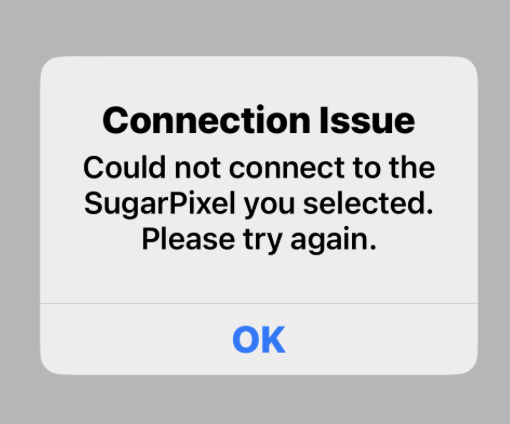 If the SugarPixel app cannot connect, follow the steps below in order.
1. Reboot your phone
2. Unplug SugarPixel and plug it back in
3. Try connecting again in the app
If you previously forgot to tap **Disconnect** in the app, this often resolves the issue.
Open your phone’s **Settings → Apps → SugarPixel** and confirm all permissions are allowed. Then reopen the app and try connecting again.
If the app shows "Stopped", also ensure Bluetooth is enabled on your phone.
An incorrect secure pairing code is the most common cause of connection failure.
SugarPixel displays a unique **6-digit pairing code** on its screen when pairing. If the wrong code was entered, your phone may show “connected,” but SugarPixel will not send data.
To fix:
1. Open your phone’s **Bluetooth settings**
2. Find the saved SugarPixel device
3. Select **Unpair / Forget / Delete**
4. Restart your phone
5. Unplug and replug SugarPixel
6. Open the SugarPixel app and reconnect
7. When prompted, enter the **6-digit code shown on the SugarPixel display**
If the app still cannot connect:
1. Remove any saved SugarPixel in Bluetooth settings
2. Restart phone and SugarPixel
3. In phone Bluetooth settings, tap SugarPixel when it appears
4. Enter the **6-digit pairing code**
5. If it shows “Connected,” tap to **Disconnect** (do not forget)
6. Reboot SugarPixel
7. Open the SugarPixel app and connect
If you must repeat pairing steps or enter the code every time, the Bluetooth storage may be full.
To reset:
1. Connect to SugarPixel in the app
2. Go to **Menu → Reset → Reset Bluetooth**
3. On your phone, remove the saved SugarPixel device
4. Repeat pairing from the app using the 6-digit code
If multiple phones have connected before, remove SugarPixel from Bluetooth settings on each device.
If the SugarPixel app cannot connect, follow the steps below in order.
1. Reboot your phone
2. Unplug SugarPixel and plug it back in
3. Try connecting again in the app
If you previously forgot to tap **Disconnect** in the app, this often resolves the issue.
Open your phone’s **Settings → Apps → SugarPixel** and confirm all permissions are allowed. Then reopen the app and try connecting again.
If the app shows "Stopped", also ensure Bluetooth is enabled on your phone.
An incorrect secure pairing code is the most common cause of connection failure.
SugarPixel displays a unique **6-digit pairing code** on its screen when pairing. If the wrong code was entered, your phone may show “connected,” but SugarPixel will not send data.
To fix:
1. Open your phone’s **Bluetooth settings**
2. Find the saved SugarPixel device
3. Select **Unpair / Forget / Delete**
4. Restart your phone
5. Unplug and replug SugarPixel
6. Open the SugarPixel app and reconnect
7. When prompted, enter the **6-digit code shown on the SugarPixel display**
If the app still cannot connect:
1. Remove any saved SugarPixel in Bluetooth settings
2. Restart phone and SugarPixel
3. In phone Bluetooth settings, tap SugarPixel when it appears
4. Enter the **6-digit pairing code**
5. If it shows “Connected,” tap to **Disconnect** (do not forget)
6. Reboot SugarPixel
7. Open the SugarPixel app and connect
If you must repeat pairing steps or enter the code every time, the Bluetooth storage may be full.
To reset:
1. Connect to SugarPixel in the app
2. Go to **Menu → Reset → Reset Bluetooth**
3. On your phone, remove the saved SugarPixel device
4. Repeat pairing from the app using the 6-digit code
If multiple phones have connected before, remove SugarPixel from Bluetooth settings on each device.