> ## Documentation Index
> Fetch the complete documentation index at: https://docs.customtypeone.com/llms.txt
> Use this file to discover all available pages before exploring further.
# Mobile App Setup
SugarPixel is configured using the **SugarPixel Hub** mobile app (Available for [iPhone](https://www.customtypeone.com/SugarPixeliPhone) or [Android](https://play.google.com/store/apps/details?id=com.customtypeone.sugarpixelhub)). The app connects to SugarPixel via **Bluetooth** for setup and configuration. Once setup is complete, SugarPixel runs independently.
The app does **not** connect to your CGM and does **not** need to be installed on the same phone as your CGM app.
* You can install the app on **multiple phones** to configure the same SugarPixel, or manage **multiple SugarPixels** from one phone.
* All settings are saved **on the SugarPixel**, not in the app. Each device is configured independently.
* Install the [iPhone](https://www.customtypeone.com/SugarPixeliPhone) or [Android](https://play.google.com/store/apps/details?id=com.customtypeone.sugarpixelhub) app now.
* Allow **all app permissions**, including notifications. Notifications are required to alert you when software updates are available
* Bluetooth is used **only for configuration and some remote commands**.
* The app is **not intended to stay connected** via Bluetooth. Leaving it connected can interfere with WiFi downloads.
* When finished changing settings, always tap **Disconnect** in the app menu.
* If you forget, SugarPixel will automatically disconnect Bluetooth. This may require a reboot to connect in the future.
⚠️ **Do not connect using your phone’s system Bluetooth settings.**
All Bluetooth connections must be made **from within the SugarPixel app**.
When the app opens, it automatically scans for nearby SugarPixels over Bluetooth.
* All detected SugarPixels will appear in a list.
* If you own multiple SugarPixels, each will appear as a separate entry.
* Each device has a unique identifier (for example: SugarPixel-2A28).
* If setting up multiple devices, it may be easiest to power on **one at a time** during initial setup.
* You can rename SugarPixels later to make them easier to identify.
To begin configuration, tap the **SugarPixel name** in the list.
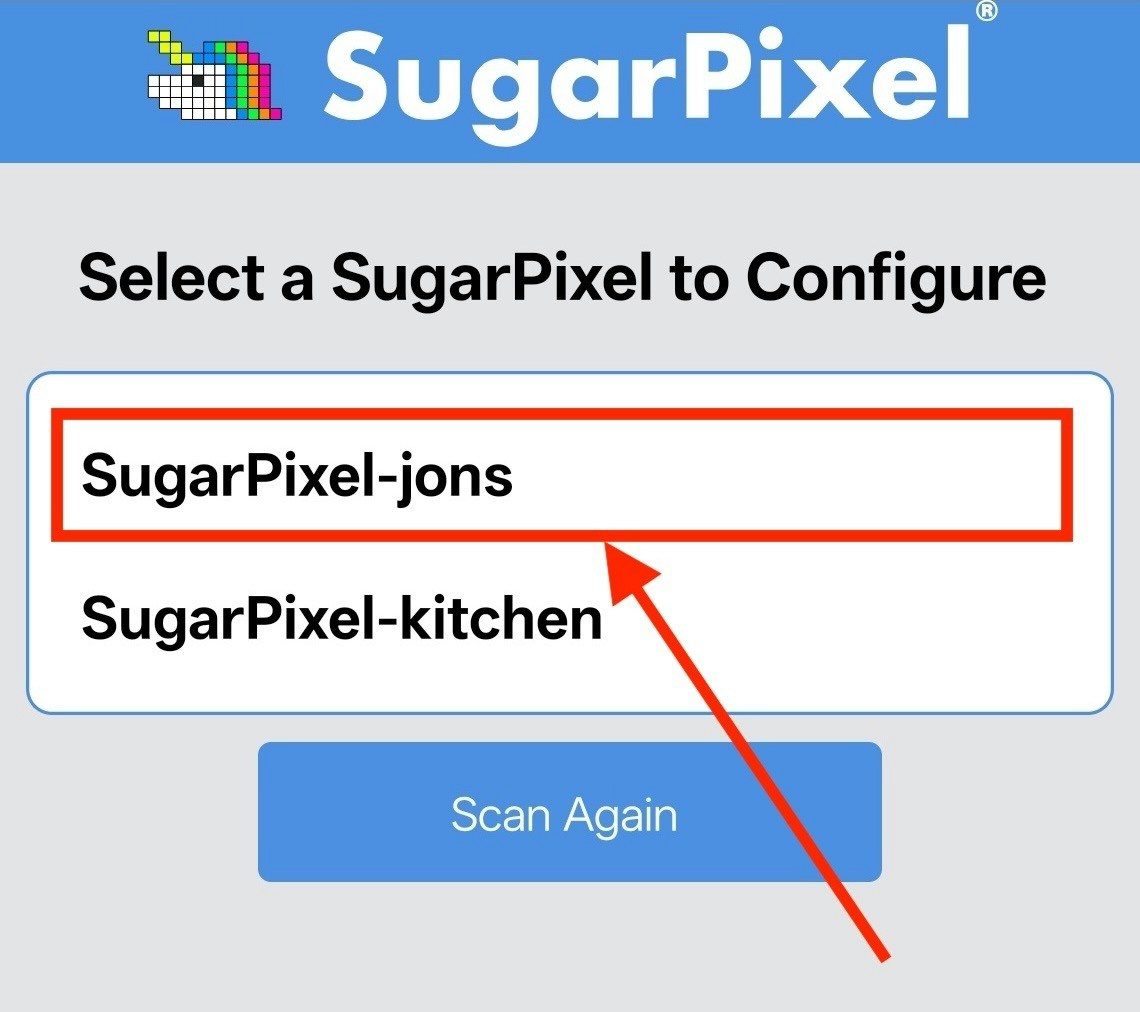 If no devices appear, tap **Scan Again**.
If your SugarPixel still does not appear:
* Move closer to the device
* Restart SugarPixel by unplugging power and plugging it back in
* Tap **Scan Again**
If the scan shows “**Stopped**”, ensure you have bluetooth enabled and have allowed all permissions.
If you continue to see Bluetooth errors, see the Bluetooth troubleshooting document.
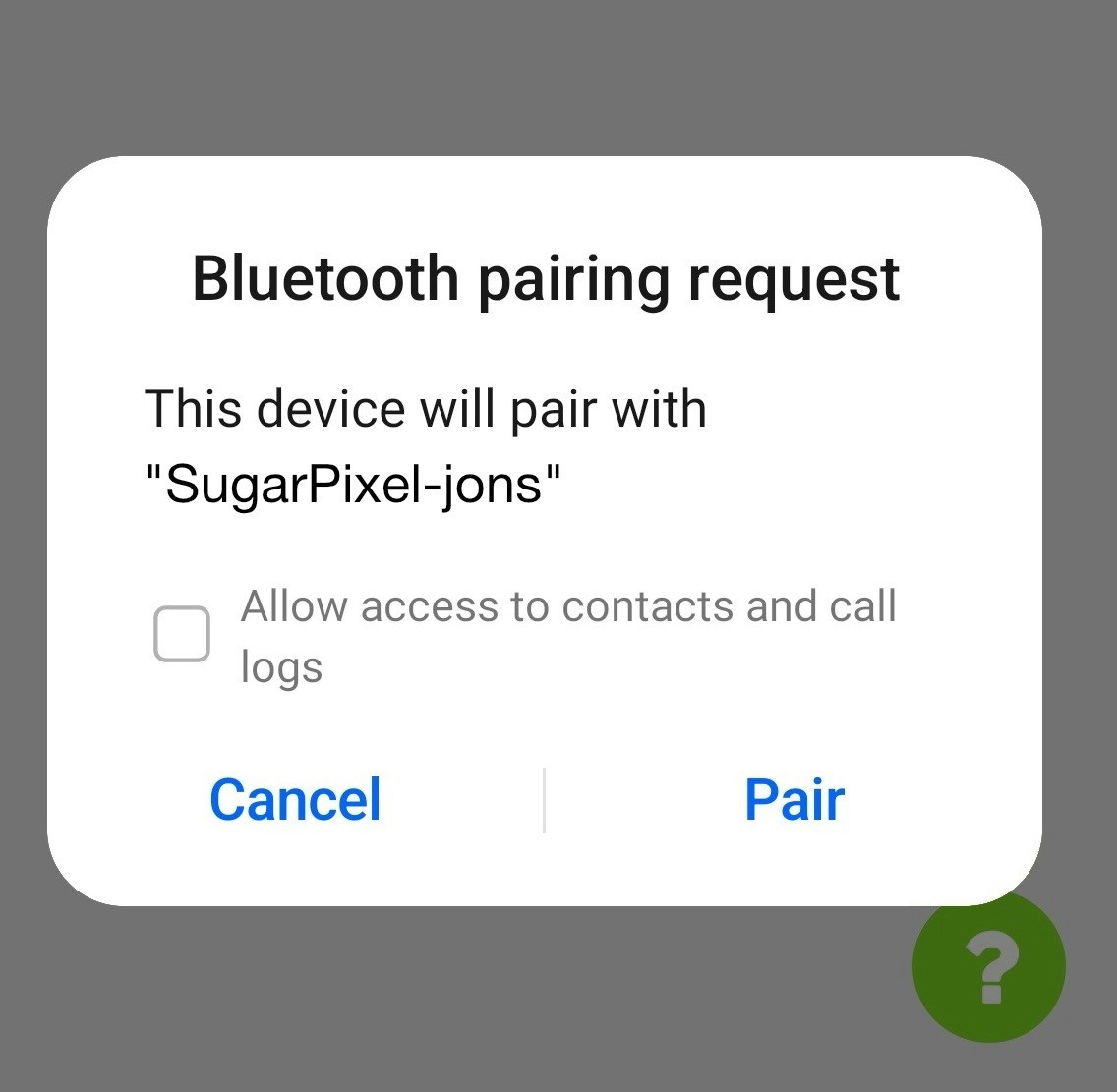
The first time you connect from a new phone, your phone’s operating system will prompt for a **pairing (PIN) code**.
* SugarPixel will display a **unique 6-digit code** on its physical screen.
* Enter **that exact code** into the pairing prompt on your phone.
**Do not enter** example codes suggested by your phone (such as 0000 or 1234). The pairing code **must** match the 6-digit code shown on the SugarPixel display and is unique each time you pair a new phone.
If no devices appear, tap **Scan Again**.
If your SugarPixel still does not appear:
* Move closer to the device
* Restart SugarPixel by unplugging power and plugging it back in
* Tap **Scan Again**
If the scan shows “**Stopped**”, ensure you have bluetooth enabled and have allowed all permissions.
If you continue to see Bluetooth errors, see the Bluetooth troubleshooting document.
The first time you connect from a new phone, your phone’s operating system will prompt for a **pairing (PIN) code**.
* SugarPixel will display a **unique 6-digit code** on its physical screen.
* Enter **that exact code** into the pairing prompt on your phone.
**Do not enter** example codes suggested by your phone (such as 0000 or 1234). The pairing code **must** match the 6-digit code shown on the SugarPixel display and is unique each time you pair a new phone.
 Once connected, the app opens the **main configuration menu** for the selected SugarPixel.
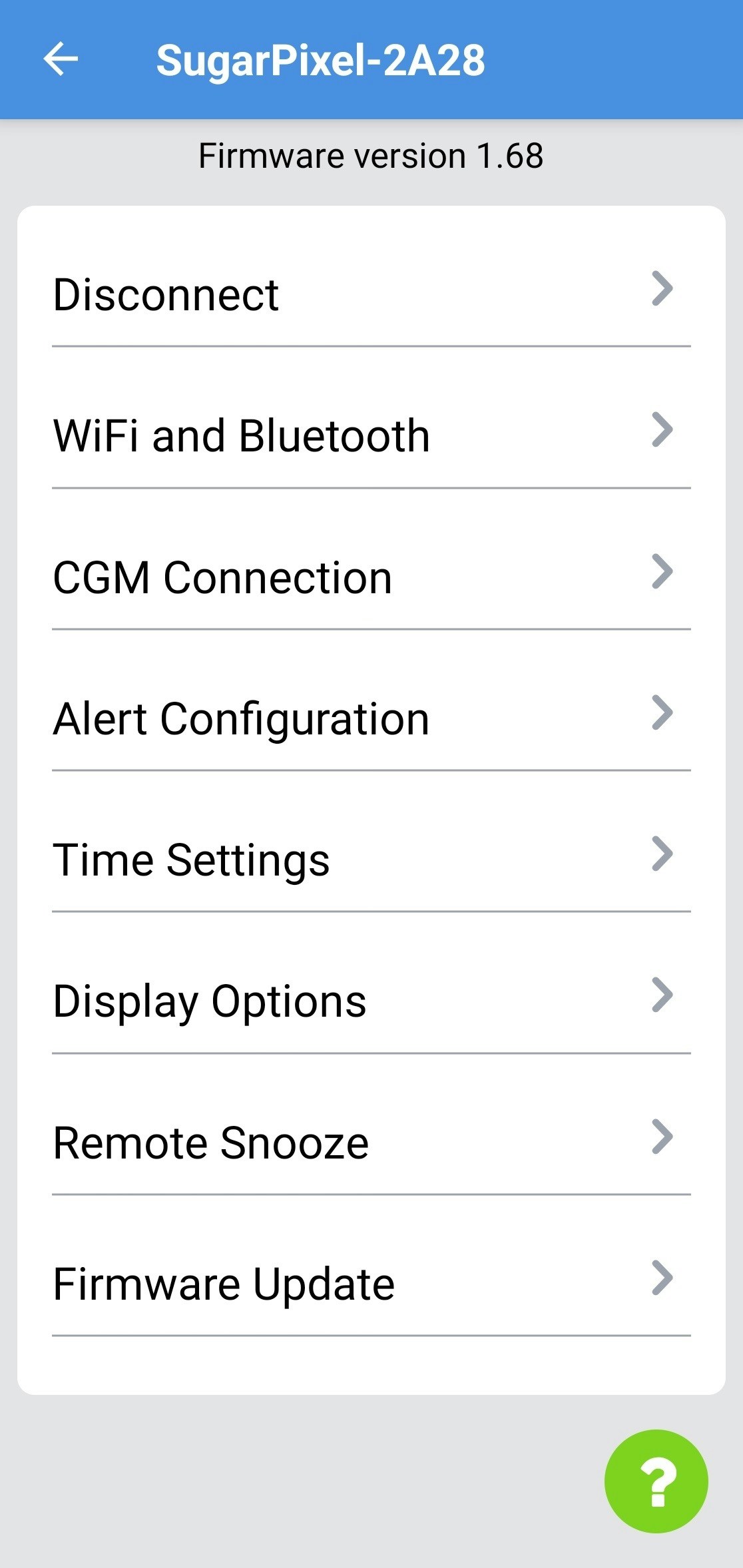 * SugarPixel runs independently after setup and does not require the app to stay connected.
* All changes are saved **automatically** to the SugarPixel:
* Toggles: when switched
* Dropdowns: when selected
* Sliders: when released
* Text fields: when submitted and exited
* A **“Saved”** indicator appears in the top-right when settings are synced.
When finished making changes, always tap **Disconnect** in the app menu.
From here, start by tapping **WiFi & Bluetooth** to connect SugarPixel to your home WiFi and proceed to the next user manual page below.
* SugarPixel runs independently after setup and does not require the app to stay connected.
* All changes are saved **automatically** to the SugarPixel:
* Toggles: when switched
* Dropdowns: when selected
* Sliders: when released
* Text fields: when submitted and exited
* A **“Saved”** indicator appears in the top-right when settings are synced.
When finished making changes, always tap **Disconnect** in the app menu.
From here, start by tapping **WiFi & Bluetooth** to connect SugarPixel to your home WiFi and proceed to the next user manual page below.